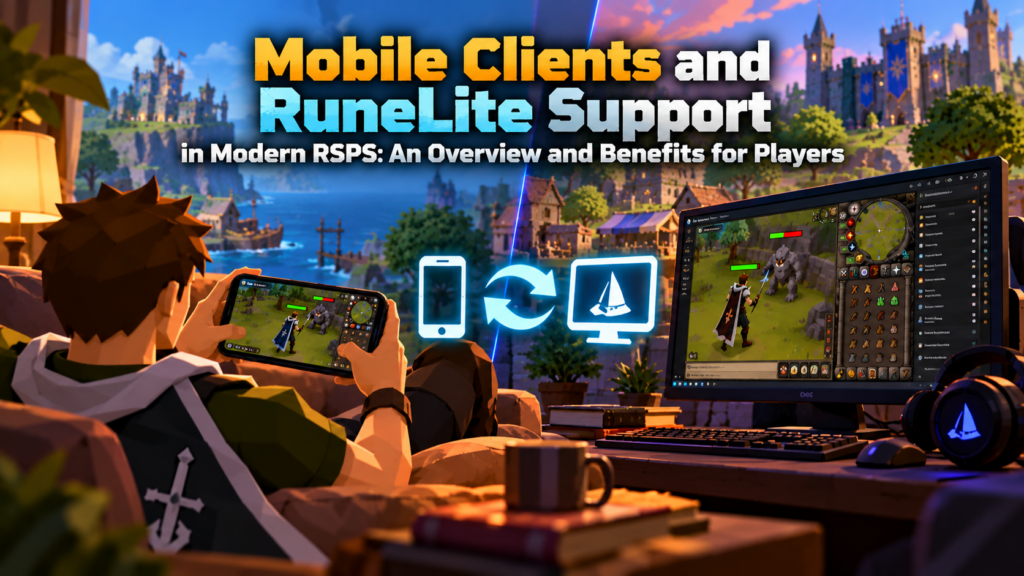
Your Slayer task isn’t finished, but you need to leave your desk. A mobile RSPS client could let you finish it on the couch or check your bank while you’re away. Handy, certainly. Yet mobile access and RuneLite support are often advertised together, even though they solve different problems.
Here’s what those features actually mean, where they help, and what to check before downloading another client.
Mobile Clients and RuneLite Aren’t the Same Thing
Mobile support determines where you play. RuneLite-style features affect how you play. A server might offer one, both, or a rather limited version of each.
Official RuneLite is a free, open-source desktop client for Old School RuneScape, available for Windows, macOS, and Linux. It offers tools such as loot tracking, interface customization, and GPU rendering. It does not have an official mobile version. Jagex’s OSRS mobile app is a separate product.
Private servers may adapt RuneLite technology for their own desktop clients or build selected features into different applications. Seeing “RuneLite supported” beside “Android” doesn’t mean the same RuneLite client runs on your phone.
What Mobile Support Looks Like Across RSPS
Browse an RSPS list, and you’ll encounter Android downloads, iOS claims, and browser-play options. Those labels describe access, not quality. An app that opens successfully may still be awkward to control.
|
Access option |
Main advantage |
Potential drawback |
|
Android app |
Runs directly on a supported phone |
Installation, updates, and touch controls vary |
|
iOS build |
Plays on supported iPhones or iPads |
Distribution and device compatibility can be restrictive |
|
Mobile browser |
Little or no installation |
Performance and screen layout depend on the browser client |
|
Remote desktop |
Access to a PC session from a phone |
Requires a running computer and a strong connection |
Why a Mobile Badge Isn’t Enough
Android support doesn’t guarantee an iPhone version. A desktop web client may not be usable in a mobile browser, either. An RSPS server list can identify a claimed platform, but cannot confirm support for your particular device. Check the current installation route before assuming any phone will do.
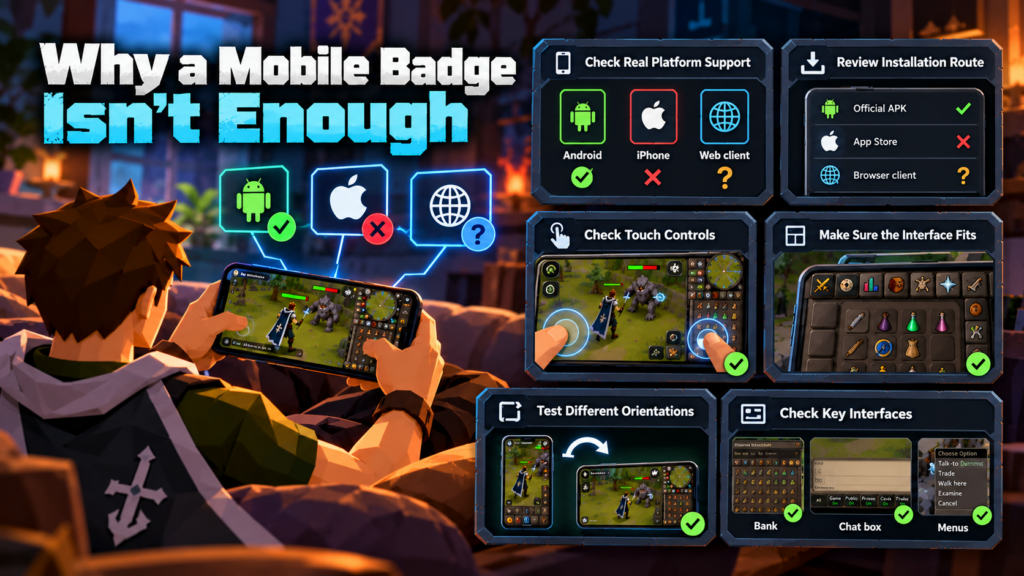
Touch controls deserve attention. Opening a bank should take a few taps, not repeated zooming. Prayer tabs, inventories, and movement controls need enough space to use without hiding the fight. These details matter far more than screenshots of a polished login screen.
Try rotating the phone, opening the chat box, and moving the camera while the inventory is visible. If the client supports landscape only, make sure that’s comfortable for your hands. Some interfaces scale well until an in-game dialogue or custom menu appears; that’s when a supposedly mobile-friendly design often breaks down.
What RuneLite Support Really Includes
Familiar labels can sound more generous than they are. Someone looking up a CSGO500 promo code would need to check the actual conditions, not rely on a headline. RuneLite support deserves the same scrutiny: the name alone doesn’t tell you which features work.
On an RSPS, that label might refer to a modified RuneLite-based desktop client, a custom launcher with similar tools, or a separate mobile application that recreates a few popular plugins.
Desktop Plugins Don’t Automatically Transfer
RuneLite’s Plugin Hub and its review process belong to the official desktop ecosystem. Private-server clients don’t automatically share that compatibility or review system. A plugin intended for standard OSRS may also need changes to recognize custom bosses, items, or interfaces.
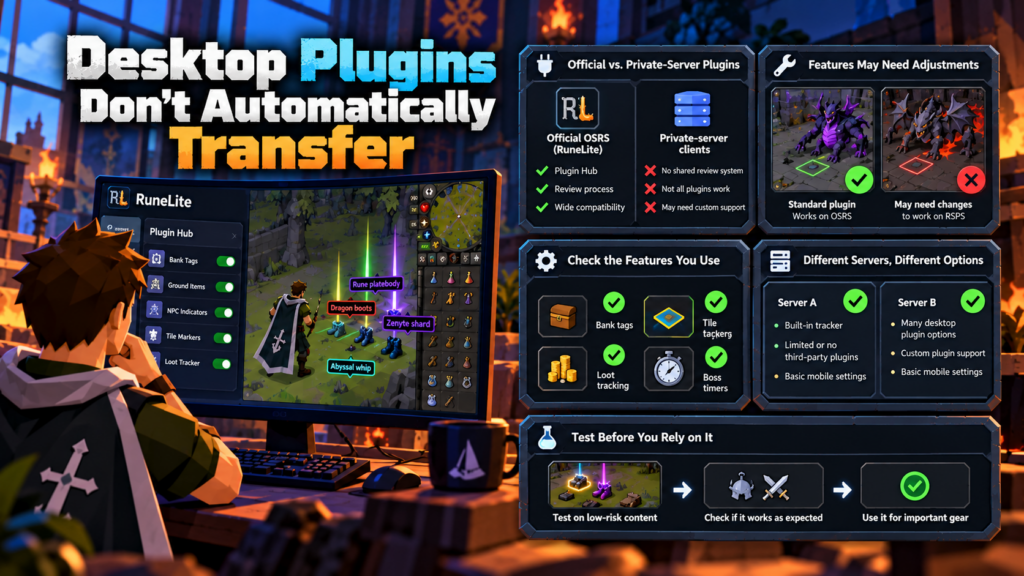
If you depend on bank tags, loot tracking, or tile markers, check those exact features. One server may offer an excellent built-in tracker but no support for third-party plugins. Another may provide many desktop options and only basic mobile settings. Neither setup is necessarily bad, as long as it matches what you need.
There is also a difference between a plugin being installed and being useful. Ground-item highlights may fail to recognize a server’s custom drops. A boss timer can be calibrated for an official encounter that the private server has altered. If a feature affects combat decisions, try it on low-risk content before trusting it with expensive gear.
Mobile Overlays Need a Different Design
On a monitor, a plugin can put information beside the game window. On a phone, that space disappears. Timers and counters may work better inside collapsible panels or small indicators.
Alora’s published mobile-development updates, for example, have described recreating selected RuneLite-style functions for its own mobile client. That’s different from running official RuneLite on a phone, and it’s a useful distinction when comparing projects.
Which RuneLite-Style Features Are Worth Having?
A long plugin menu can look impressive without making the game easier to use. Consider what actually saves time during an ordinary session. A bank search function helps every time you prepare for a boss; a flashy overlay that obstructs the inventory doesn’t.
The strongest everyday features often fall into these groups:
- Bank and inventory tools. Search, tags, and presets can speed up equipment changes and supply runs, especially when a character has hundreds of items.
- Loot and XP tracking. Kill counts and drop records help players follow progress across long Slayer or bossing sessions.
- Timers and readable indicators. Correct boost timers or ground-item labels reduce guesswork without forcing players through extra menus.
- Display controls. Scaling, draw-distance options, and sensible interface placement improve comfort, particularly on small screens.
Accuracy matters more than quantity. A timer that runs out of sync with a custom boss can mislead you at exactly the wrong moment. Better to have a few dependable tools than dozens you cannot trust.
Mobile Play Changes the Kind of Sessions You Can Have
A long raid is risky when your connection could disappear in a tunnel. Fishing, gathering supplies, or finishing a short Slayer task is much easier to fit around everyday interruptions.
That makes mobile useful even to players who never intend to PK or raid on a phone. You can prepare food and potions, check progress, or clear inventory space before returning to your computer for a longer session. Small tasks no longer have to compete for desktop time.
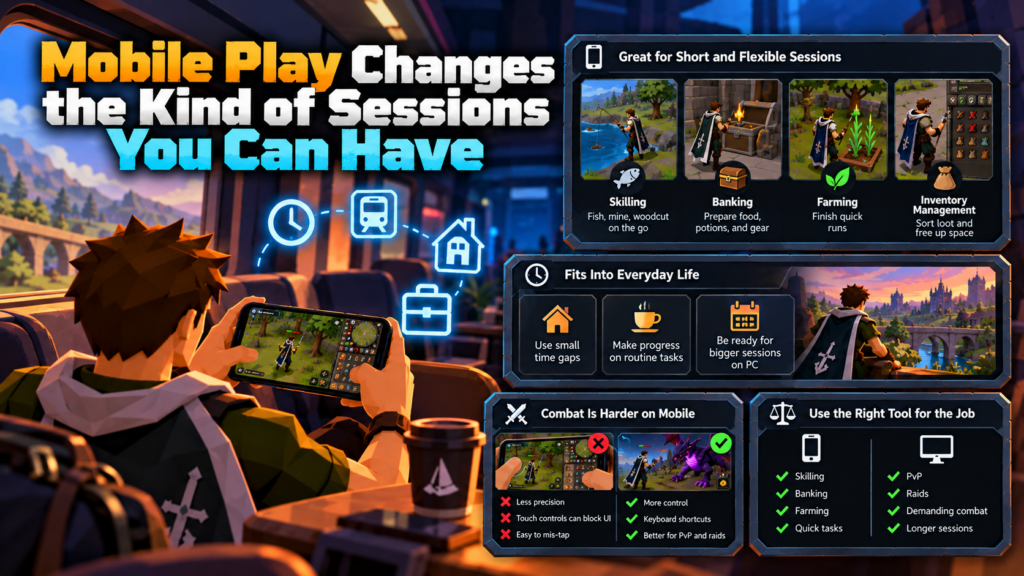
The time savings add up in ordinary places. Restocking potions before a weekend raid, finishing a farming run, or sorting loot after a boss session doesn’t require a gaming PC if the mobile client handles those menus well. It also lets players with limited desk time keep their accounts moving without turning every login into a major session.
Combat Still Favors the Right Controls
Mouse precision and keyboard shortcuts remain valuable for demanding PvP and some raids. On touchscreens, a thumb can block the target or prayer tab, while a misplaced tap can move your character instead of switching equipment.
A well-designed mobile client makes routine combat comfortable. It doesn’t have to reproduce every desktop action. If difficult content feels awkward, using mobile for skilling and PC for combat is a sensible division of labor.
Cross-Platform Progress Is More Useful Than Matching Layouts
The big advantage of supporting two devices is the ability to continue the same character. When a project supports both clients on the same world, character progress, equipment, and bank contents are generally held by the server.
Local preferences can be different. Plugin configurations, window layouts, screenshots, and hotkeys may stay on one device. Before relying on cross-platform play, complete a small task on PC, switch to mobile, and check the character’s progress. Then see whether customized settings survive the change.
An RSPS server list may mention cross-platform support, but it won’t usually explain these details. Testing a real handoff tells you more than the phrase “seamless syncing.”
Also find out whether both clients point to the same game world and whether mobile receives updates at the same time as desktop. A server might have a working phone app but introduce new interfaces or content on the PC first. That gap matters if you regularly switch devices in the middle of a progression goal.
Performance Means Responsiveness, Not Just FPS
A client might show a steady frame rate while taking too long to register taps. Device performance, network latency, and server response all affect how the game feels. Pay attention to movement, banking, and equipment switches, not only the graphics.
Battery and Connection Are Part of the Experience
High draw distance and visual effects can make a phone run hotter and drain its battery. Adjustable graphics, a frame-rate cap, and scalable interfaces help you make trade-offs without abandoning mobile play.
Network changes are another issue. Moving between Wi-Fi and mobile data can interrupt a session; backgrounding the app may do the same. Test reconnection while doing something low-risk before taking valuable equipment into dangerous content.
A smooth ten-minute skilling session is more meaningful than a beautiful screenshot of a client that crashes after half an hour.
How Different Projects Describe Their Clients
Returning to an RSPS list after trying a few clients, you’ll notice how loosely “mobile” and “RuneLite” are used. Listings can point to those claims, but cannot test them. Some projects advertise distinct desktop and mobile clients; others list multiple access methods together.
For example, Luna RS has described a RuneLite-based PC experience alongside mobile versions with RuneLite-style features. Alora has promoted Android and iOS access and discussed adapting particular plugins. BattleScape has advertised RuneLite, mobile access, and a web app.
These are examples of how support is marketed, not guarantees that every feature works on every device today. Check the project’s current instructions and test the client you intend to use.
Download Safely, Then Test the Basics
Private-server software comes from independently operated projects. Avoid reusing your official RuneScape or email password. Download only through the project’s current, verifiable channels, and treat requests to disable device security or grant unrelated permissions as warning signs.
You don’t need an exhaustive benchmark to decide whether a client fits. Spend a short session doing what you normally do: bank supplies, train a skill, fight a familiar enemy, and try one advertised plugin. Move between a few areas and see whether the interface remains usable. If mobile access is the attraction, briefly test reconnection in a safe area.
A useful check is to repeat a task you know well on PC for 10 minutes. Count the extra taps needed to refill an inventory, navigate a teleport menu, or collect drops. If the same routine takes twice as much effort on mobile, the problem is likely the interface rather than your familiarity with RuneScape.
Notice What Slows You Down
Repeated mis-taps, awkward tab placement, inaccurate counters, and frequent reconnects won’t become charming with time. A client that makes routine actions simple has more lasting value than one packed with features you rarely use.
A Good Mobile Client Should Feel Ordinary
RuneLite-style tools can make an RSPS easier to navigate, while mobile access makes shorter sessions possible away from a computer. The best combinations respect the strengths of each device instead of trying to force the same interface everywhere.
If banking, skilling, and reconnecting feel effortless, the technology has done its job. You’re free to focus on the game rather than the client running it.